
Free Shipping Bar Attributes
Free Shipping on Orders Over $250. Shop Now
Aersync P1 FAQ
➤ Frequently Asked Questions
Aersync P1 works with single-phase dust extractors. Choose the appropriate 10A or 15A version.
If your extractor has an NVR switch, a qualified electrician must bypass it for Aersync P1 to work properly. An NVR bypass is required whether you use Aersync P1 or any other brand of controller.
No — your dust extractor will not automatically restart when power is restored. Aersync P1 only operates the motor if there’s a valid signal from the remote control or if Aersync detects that a connected tool is in use.
Aersync P1 does not automatically restart solely because power returns. A subsequent tool-detection or remote command can activate extraction.
An NVR switch requires a manual reset after power is interrupted, preventing the extractor from restarting automatically.
Yes, provided the modification is carried out by a licensed electrician.
Yes — but the extractor will require a manual reset after each power interruption. This limits the hands-free automation experience.
Aersync P1 has 10A and 15A options. The 15A model requires a suitable 15A outlet.
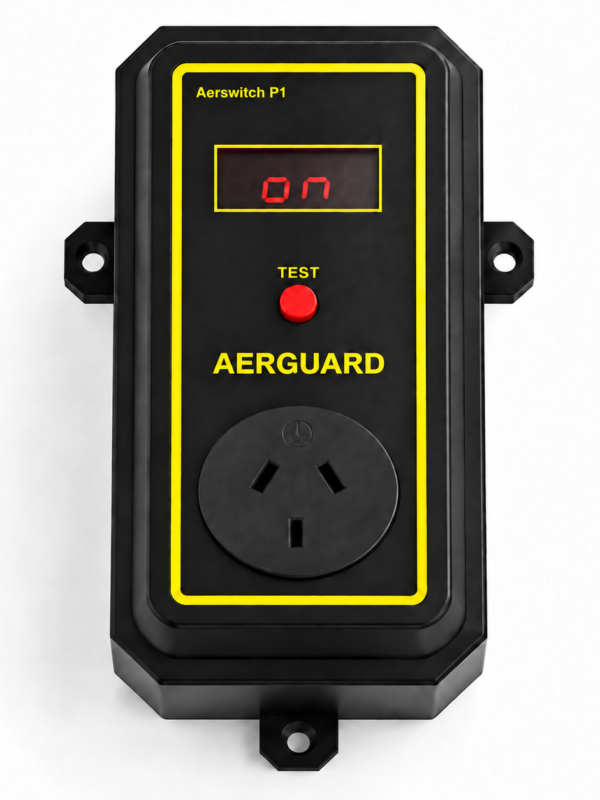
Yes, Aerswitch P3 provides remote ON/OFF control for three-phase dust extractors. Aersync P3 automatically starts your dust extractor when a tool connected to the unit is being used. See the three-phase setup guide for more information.
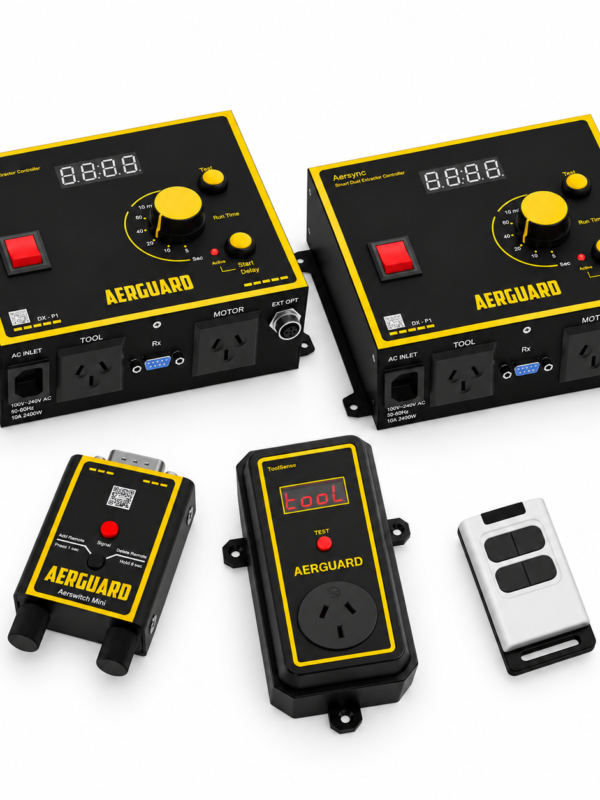
Yes. ToolSense wireless sensors detect tools at separate stations and signal an Aerswitch receiver connected to Aersync P1. See the dust extraction setup guide for the hardware required.
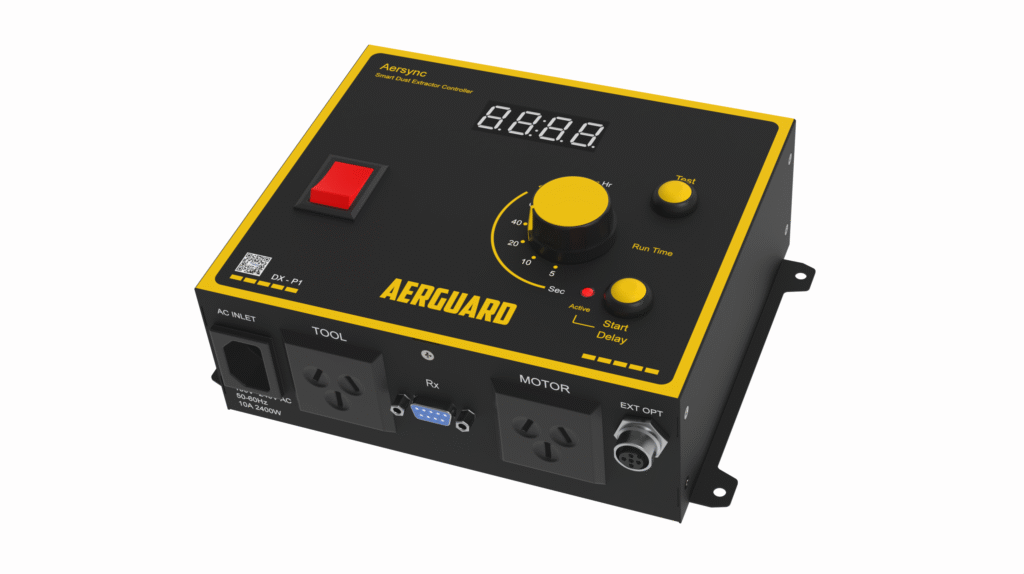
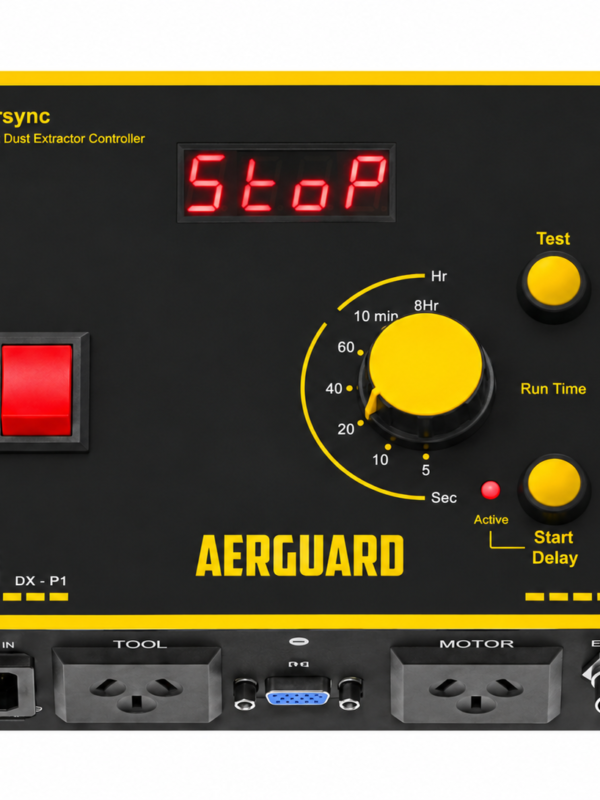
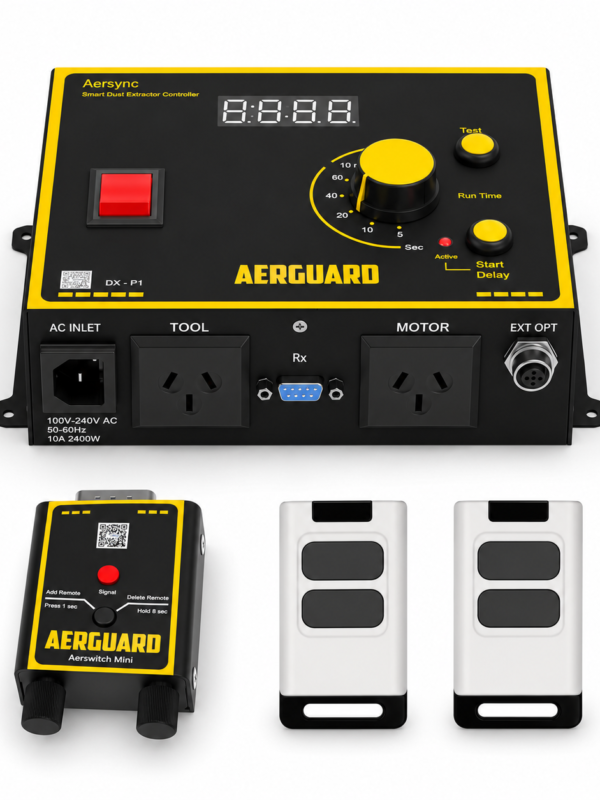
Yes, you can use the test button on the control panel for quick operation. Alternatively, you can easily control the dust extractor with the optional remote kit, allowing you to turn it on or off manually.
Ensure all sockets and plugs are securely connected.
Check that the power supply is active.
Turn off the controller, wait 10 seconds, then turn it back on.
Press the test button on the control panel to see if it activates the dust extractor.
If the problem continues, check our troubleshooting guide or contact Aerguard support.
Ensure the system is powered off before connecting or disconnecting any tools.
Use only the supplied power cable.
Do not exceed the power limits specified on the nameplate.
Keep the controller away from moisture and extreme heat.
Contact our support team via phone or email. Alternatively, visit the support section on our website for troubleshooting tips and FAQs.